How to Set Up MetaTrader Trend Alerts Across Timeframes
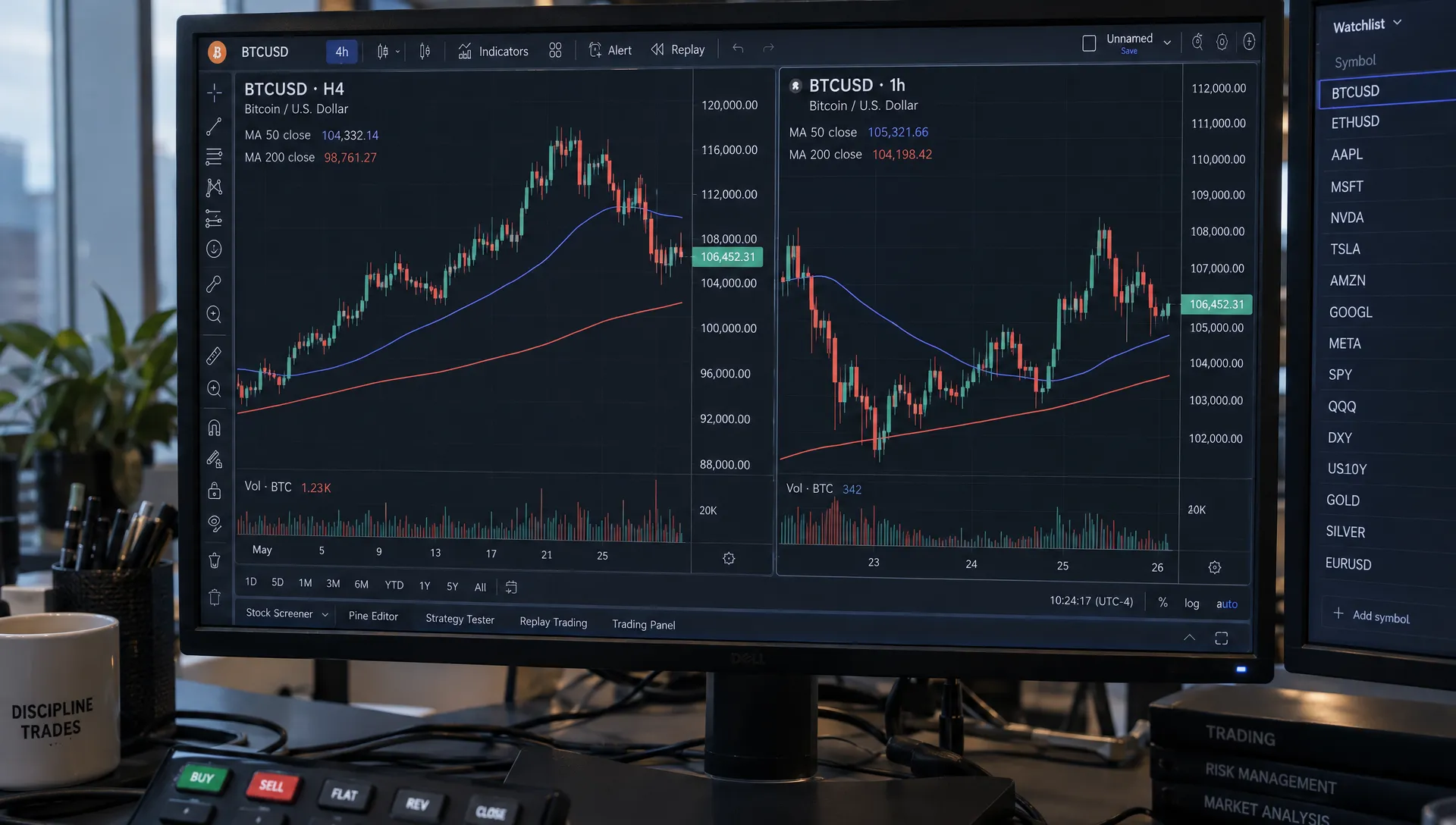
A useful MetaTrader trend alert should tell you which market changed, which timeframes agree and whether the signal survived the candle close. A notification that fires every time price flickers above a moving average creates noise, not a repeatable trading process.
This guide builds a straightforward setup: use H4 for trend context, H1 for confirmation and mobile push notifications for delivery. You will also get an MT5 code example that checks completed candles without placing trades, plus the differences to account for on MT4 and mobile.
Choose the right kind of alert
MetaTrader’s built-in price alerts and indicator-based alerts solve different problems. A price alert watches a specified level. It does not automatically evaluate moving-average alignment across several timeframes.
| Alert type | What it checks | Appropriate use |
|---|---|---|
| Built-in price alert | Price crossing a specified threshold | Watching support, resistance or a planned entry level |
| Custom indicator alert | Conditions programmed into an indicator | Receiving notifications from a particular indicator |
| Expert Advisor alert | Conditions programmed into an EA | Combining timeframes, managing repeated alerts and defining notification logic |
An Expert Advisor does not have to trade. It can simply read indicators and send messages, which is what the example below does.
For desktop price alerts, open the Alerts tab in MT5’s Toolbox or MT4’s Terminal, then right-click to create an alert. For indicator conditions, you need a custom indicator or EA that explicitly implements those conditions and notifications.
Define your MetaTrader trend rules before configuring notifications
Use the same indicator settings on both timeframes so the comparison remains understandable:
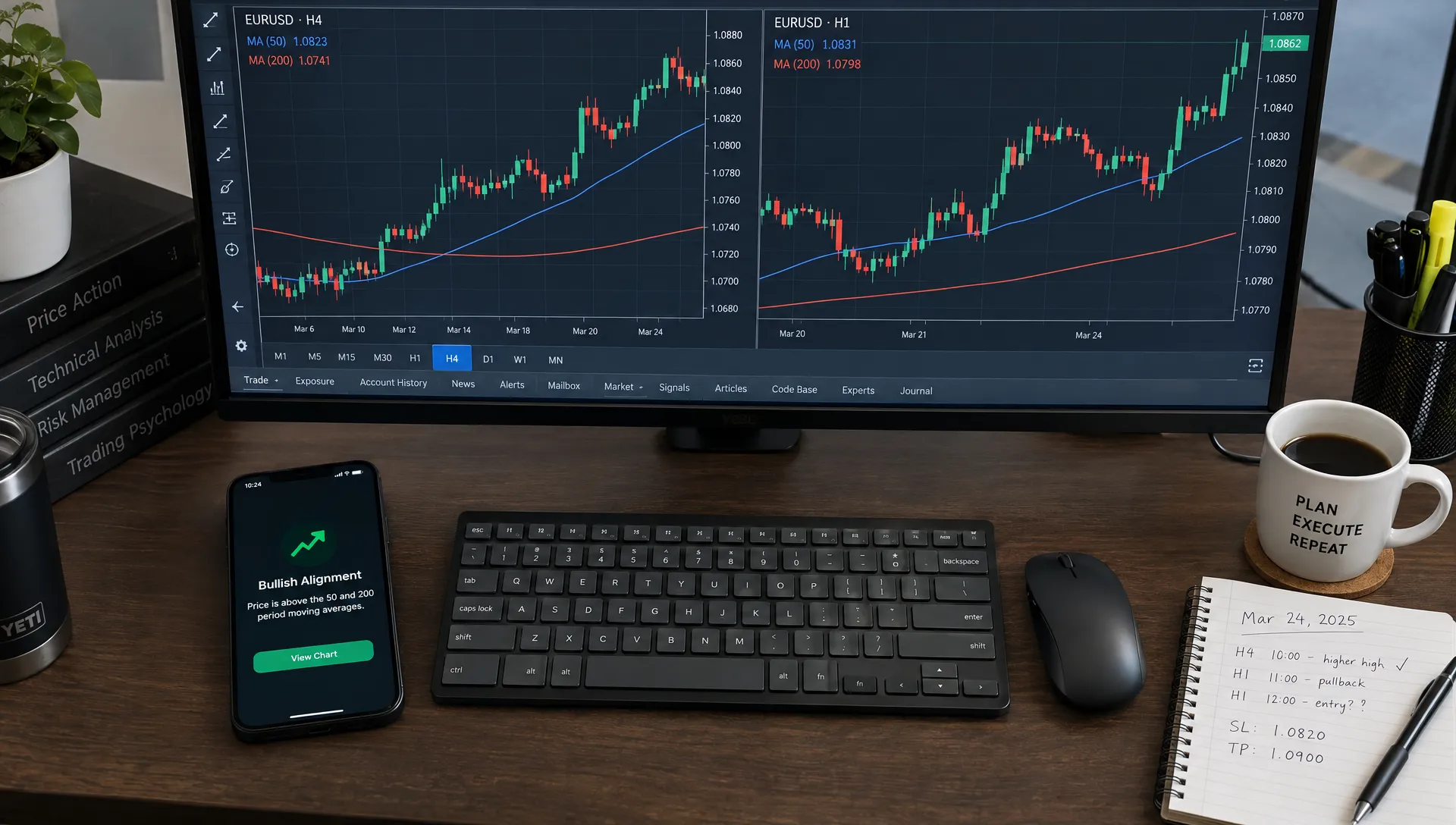
- Context timeframe: H4, using a 50-period EMA and 200-period EMA applied to closing prices.
- Confirmation timeframe: H1, using the same two EMAs.
- Bullish alignment: The 50 EMA is above the 200 EMA on both timeframes.
- Bearish alignment: The 50 EMA is below the 200 EMA on both timeframes.
- Mixed state: The timeframes disagree or either pair is equal.
The alert fires when the combined state changes into bullish or bearish alignment. Continuing alignment produces no additional notification. A mixed state rearms the alert, so a later return to alignment can generate another message.
Use completed candles, not the moving candle
Evaluate the most recently completed candle on each timeframe. In MQL5 indicator buffers, that means shift 1, not shift 0. The current candle can move back and forth across an indicator before closing.
For example, when a new H1 bar begins, evaluate the H1 bar that just finished and the latest completed H4 bar. Do not use the unfinished H4 candle simply because H1 has closed.
These rules describe alignment, not a guaranteed entry opportunity. EMAs lag price, and a 50/200 combination can confirm a move after a substantial portion has already occurred.
Configure desktop-to-phone notifications
Before installing the MetaTrader trend logic, test notification delivery independently. Otherwise, a missing message could mean either a signal problem or a phone configuration problem.
In the MetaTrader mobile app, locate your MetaQuotes ID in the messaging area. On desktop, open Tools → Options → Notifications, enable push notifications and enter that ID. Use Test to confirm delivery, then check your phone’s operating-system notification permissions if nothing arrives.
The desktop terminal must remain running, connected and able to receive data for this EA to monitor the market. A properly configured hosted terminal is another option. Installing the mobile app alone does not keep desktop code running.
MetaQuotes documents the delivery restrictions in its SendNotification reference, including rate limits and the fact that the function does not operate in the Strategy Tester. Keep notifications selective rather than sending one on every tick.
The example uses Alert() for a terminal alert and optionally uses SendNotification() for mobile delivery. It does not send email.
Install the MT5 multi-timeframe alert EA
In desktop MT5, press F4 to open MetaEditor. Create a new Expert Advisor (template) named MTFTrendAlert, replace the generated contents with the code below and press F7 to compile.
This is an illustrative MetaTrader trend implementation to review and demo-test before relying on it. It uses MQL5’s built-in iMA indicator handles, not a downloaded indicator package.
MQL5 code
#property strict

input ENUM_TIMEFRAMES HigherTF=PERIOD_H4;
input ENUM_TIMEFRAMES LowerTF=PERIOD_H1;
input int Fast=50;
input int Slow=200;
input bool Push=false;

int h[4]={INVALID_HANDLE,INVALID_HANDLE,INVALID_HANDLE,INVALID_HANDLE};
datetime seen=0;
int previous=0;
bool ready=false;

bool Value(int handle,double &v)
{
   double b[1];
   if(BarsCalculated(handle)<Slow+2) return false;
   if(CopyBuffer(handle,0,1,1,b)!=1) return false;
   v=b[0];
   return MathIsValidNumber(v)&&v!=EMPTY_VALUE;
}

int OnInit()
{
   if(Fast<=0||Slow<=Fast||
      PeriodSeconds(HigherTF)<=PeriodSeconds(LowerTF))
      return INIT_PARAMETERS_INCORRECT;

   h[0]=iMA(_Symbol,HigherTF,Fast,0,MODE_EMA,PRICE_CLOSE);
   h[1]=iMA(_Symbol,HigherTF,Slow,0,MODE_EMA,PRICE_CLOSE);
   h[2]=iMA(_Symbol,LowerTF,Fast,0,MODE_EMA,PRICE_CLOSE);
   h[3]=iMA(_Symbol,LowerTF,Slow,0,MODE_EMA,PRICE_CLOSE);

   for(int i=0;i<4;i++)
      if(h[i]==INVALID_HANDLE) return INIT_FAILED;
   if(!EventSetTimer(10)) return INIT_FAILED;
   return INIT_SUCCEEDED;
}

void OnTimer()
{
   datetime closed=iTime(_Symbol,LowerTF,1);
   if(closed==0||closed==seen) return;

   double a,b,c,d;
   if(!Value(h[0],a)||!Value(h[1],b)||
      !Value(h[2],c)||!Value(h[3],d)) return;

   int state=0;
   if(a>b&&c>d) state=1;
   if(a<b&&c<d) state=-1;
   seen=closed;

   if(!ready)
   {
      previous=state;
      ready=true;
      return;
   }

   if(state!=0&&state!=previous)
   {
      string side=state==1?"bullish":"bearish";
      string msg=StringFormat("%s: %s EMA alignment %s/%s; bar %s",
         _Symbol,side,EnumToString(HigherTF),EnumToString(LowerTF),
         TimeToString(closed,TIME_DATE|TIME_MINUTES));
      Alert(msg);
      if(Push&&!SendNotification(msg))
         Print("Push failed: ",GetLastError());
   }
   previous=state;
}

void OnDeinit(const int reason)
{
   EventKillTimer();
   for(int i=0;i<4;i++)
      if(h[i]!=INVALID_HANDLE) IndicatorRelease(h[i]);
}
Attach the EA and check its behavior
Return to MT5, refresh the Navigator if necessary and drag the EA onto a chart for the instrument you want to monitor. Leave H4/H1 and 50/200 unchanged initially. Set Push=true only after the notification test succeeds.
This MetaTrader trend EA reads the chart’s symbol, but its timeframe inputs control the calculations. Changing the visible chart timeframe does not change those inputs. Run only one instance per symbol and configuration to avoid duplicate messages.
The first successful evaluation establishes a baseline without sending a historical alert. Subsequent checks occur every ten seconds, but the state is evaluated only once per newly completed lower-timeframe bar. The timestamp in each message identifies that bar’s opening time in broker-server time.
The code has no order functions and needs no DLL access. It also does not replay every missed signal after a disconnection or restart. A restart establishes a fresh baseline.
Understand the MT4 and mobile differences
The code above is MT5-only. MT4 uses different indicator-access conventions, so saving this file as an .mq4 file will not convert it.
For an MT4 version, implement the same MetaTrader trend rules in MQL4 or choose a custom indicator that explicitly supports higher-timeframe readings, completed-candle evaluation and push notifications. Confirm its repeat-alert behavior before using it across several charts.
On desktop, custom MT5 indicators belong under MQL5/Indicators, while EAs belong under MQL5/Experts. MT4 uses the corresponding MQL4 folders. Access these through File → Open Data Folder. Compiled MT4 and MT5 files are not interchangeable.
The native MetaTrader mobile apps provide built-in indicators, but they do not run desktop custom indicators or EAs. Use mobile to receive messages and inspect charts, with the monitoring logic running on desktop or a suitable hosted terminal.
Validate the alerts before judging the strategy
First test whether the implementation follows your rules. Only then investigate whether a trading strategy built around those rules has useful results.
Check the state transitions
Add matching EMAs to H4 and H1 charts and compare their completed candles with the EA’s behavior. This sequence summarizes the expected notifications after the initial baseline:
| Previous combined state | New H4 direction | New H1 direction | Expected result |
|---|---|---|---|
| Mixed | Bullish | Bullish | One bullish alert |
| Bullish | Bullish | Bullish | No additional alert |
| Bullish | Bullish | Bearish | No alert, state becomes mixed |
| Mixed | Bearish | Bearish | One bearish alert |
| Bearish | Bullish | Bullish | One bullish alert |
If a MetaTrader trend message appears inconsistent, inspect completed candles rather than the live candle. Also confirm the symbol, EMA method, applied price and timeframe inputs match.
Compare configurations without cherry-picking
For historical evaluation, define entry, exit and cost assumptions before measuring performance. An alert alone is not a trading strategy. This sample places no trades, so its Strategy Tester report will not provide a meaningful trading-performance assessment.
To research it historically, add signal logging or reproduce the conditions in a separate test EA with explicit trade rules. Popup and push notifications are not supported in the Strategy Tester.
Keep a chronological development period separate from a later, untouched out-of-sample period. Compare a small, predefined set of settings across several instruments rather than repeatedly optimizing one chart. Include spread, commission, slippage and financing costs where applicable.
Record signal frequency, drawdown, average trade outcome and exposure alongside returns. Then forward-test on a demo account, including terminal restarts and temporary connection failures. A configuration that looks attractive historically may behave differently with live spreads and delayed delivery.
Reduce noise without adding endless indicators
A MetaTrader trend alert can be technically correct yet economically unhelpful. Moving averages often alternate direction in sideways markets, and two timeframes are not independent confirmations when both derive from the same price series.
Begin with the completed-candle rule and state-change notifications already built into the example. If signals remain too frequent, test one additional filter at a time.
ADX is one candidate for filtering weak directional conditions. It measures trend strength, not direction. A threshold such as 25 is a test parameter, not a universal dividing line, and the supplied code does not include ADX.
You could instead require a minimum distance between the EMAs or restrict alerts to a defined market session. Each change should justify itself out of sample. Stacking filters until the historical chart looks clean can remove useful signals and overfit the remaining ones.
If you need a cooldown, specify whether it applies per symbol, per direction or across all alerts. The sample suppresses unchanged alignment, but a mixed state followed by renewed alignment can notify again on a later completed bar.
Keep notification handling separate from trade risk
Treat every MetaTrader trend notification as a prompt to review the market, not an instruction to enter immediately. By the time you read a mobile message, price may have moved materially from the signal bar.
Before placing a trade, define an invalidation level, acceptable loss and exit rule. For a hypothetical $10,000 account with a self-imposed 0.5% risk limit, the planned loss budget is $50. Position size must translate the stop distance into that dollar amount using the instrument’s tick value, contract specifications and trading costs.
That percentage is an illustration, not a recommended allocation. Stops cannot guarantee the planned exit price during gaps or fast markets. Multiple positions driven by the same currency, sector or market factor can also concentrate risk even when each trade appears small.
Keep a private alert journal
Record the symbol, server timestamp, timeframe pair, direction, settings and action taken. A spreadsheet is enough to distinguish useful signals from notifications you consistently ignore.
For a trading group commissioning a private web journal, the interface could be a project for a web development agency such as Digidatale, while the terminal logic remains a separate MQL development task. Share only the data the journal needs, never brokerage passwords. This example has no web integration.
Frequently asked questions
What is the best indicator for multi-timeframe trend alerts? There is no universal best choice. EMAs make a transparent starting point because their alignment is easy to define. ADX can filter strength, while Ichimoku offers a different framework. Compare complete rules, costs and out-of-sample results rather than indicator names.
Why am I not receiving an alert after attaching the EA? The first evaluation sets a baseline silently. After that, the combined state must change into bullish or bearish alignment. Check that sufficient history has loaded, the terminal is connected and the EA initialized successfully in the Experts tab.
Can MetaTrader trend alerts work when my computer is off? Not from an EA running only on that computer. The monitoring terminal must remain active somewhere, such as on a properly configured hosted terminal. Your phone receives notifications but does not run this EA.
Does agreement between H4 and H1 guarantee a profitable trade? No. Both timeframes can agree shortly before a reversal. Alignment describes the indicator state, not the probability or size of your next trade’s outcome.
Add portfolio context before acting
An alert tells you that a chart condition changed. It does not tell you whether another position would improve your overall allocation.
Use Upside Invest to compare your portfolio with verified investor holdings and examine sector exposure alongside your technical review. Keep that portfolio context separate from the alert trigger, and apply your own position limits before acting.